Please follow the easy steps below to install the theme and the demo content:
- Technical Requirements
- How to download the theme?
- Theme Installation Guide
- Basic Theme Configuration
- Demo Content Installation Guide
To install the theme you must have a working version of WordPress already installed. Make sure you have a clean WordPress setup. This installation guide will help you to install WordPress.
If you are new to WordPress please check Lessons.
We also recommend you WordPress Documentation and WordPress FAQs as a handbook.
Technical Requirements
You need web hosting with:
- PHP version 7.4 or greater. We recommend version 7.4 as the most supported version by plugins.
- MySQL version 5.6 or greater OR MariaDB version 10.1 or greater
- WordPress 5 or greater installed
Please make sure before demo installation that the hosting has PHP 7.4 or greater. Thank you!
How to download the theme?
- Click on Download button
- Choose “All files & documentation“
- Unarchive the downloaded zip file

Theme Installation Guide
1. Go to Appearance
2. Click on Add New

3. Click on Upload Theme
4. Choose File (the installable theme which is called NameOfTheme.zip)

5. Click on Install Now.

If it shows issue: “The package could not be installed. The theme is missing the style.css stylesheet.” please make sure you are uploading only the installable theme which is called NameOfTheme.zip.
Notice
6. Click on Activate

Basic Theme Configuration
1. To make your website look like the demo website you have to install all recommended plugins, BUT if you don’t need some of them, just uncheck as necessary. Elementor and King Addons are the only required plugins to make the demo pages work.
Start install plugins by clicking on Begin installing plugins

2. Select all by clicking on the top checkbox OR select only Elementor.

3. Choose Install option in Bulk actions selector
4. Click once Apply
5. Wait for a little till plugins are installing and activating. The installation time depends on your hosting performance. Usually, it takes about 10-30 seconds.

6. Click on Dashboard
Sometimes after clicking on Dashboard (on this step) you will redirect to some plugin beginner setup (like WooCommerce or Elementor). Just skip it all on, do it later after the demo content installed.
Notice
Demo Content Installation Guide
1. Download the full pack of the theme on ThemeForest in Downloads – click on All files & documentation, it will download a zip file.

2. Unzip the file and go to folder.
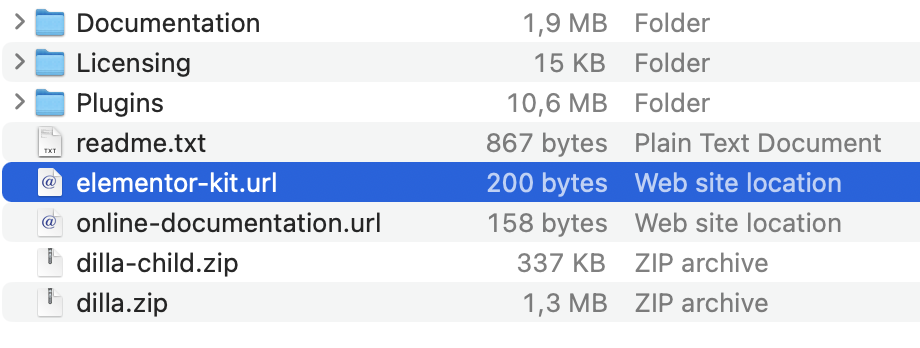
3. The folder contains link to download Elementor Kit file. Click on elementor-kit.URL file to download Elementor Kit. For example:
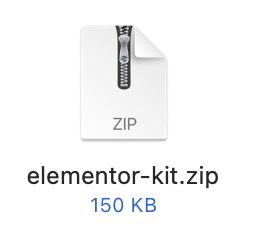
There is a downloaded ZIP file:
4. Go to Elementor -> Tools -> Import/Export Kit -> Start Import

5. Use elementor-kit.ZIP file to import Elementor template kit.
Note: In case the Elementor import causes some issue, please check Elementor help guide for fixes.
6. Done, the imported pages should look like on the demo website, please check Pages section in the WordPress admin panel to find them.
Note: If the demo website had the store, please visit WooCommerce plugin to set it up. Thank you!

Possible issues
If the exported demo looks different than the live preview then go to Elementor => Tools => Regenerate CSS => Click on Regenerate Files button.
The demo installation usually works on 99% of hostings, so issues are pretty exceptional. If you have a trouble with the installation, please check the minimal hosting requirements from the Technical Requirements section above.
If the steps above didn’t help please ask the Support.